Why Do My AI Product Renders Change My Logo? (And How to Fix It)
Your AI product renders change your logo because image generators don't treat your logo as a fixed file — they redraw the entire scene pixel by pixel from learned patterns, so your mark gets reinterpreted, warped, or invented from scratch on every generation. Text and logos suffer worst because diffusion models learn images as pixel statistics, not as protected assets you can pin in place; asking a model to "draw a can with my logo" is asking it to paint something logo-shaped, not to reproduce your exact artwork. The reliable fix is not a cleverer prompt — it is a different workflow: composite the real logo onto the render afterwards, mask it out of any regeneration (inpainting), or use a tool built to place a reference asset without repainting it. Treat the exact figures, tool names and features below as a September 2026 snapshot and verify current capabilities before you rely on them, because AI image tools change monthly.
We produce brand assets and product visuals for founders and e-commerce teams as a Top Rated Plus studio on Upwork — 8+ years, 3,000+ projects across 30+ countries and a 100% Job Success score — and "the AI changed my logo" is one of the most common problems clients bring us in 2026. Below is why it happens at a technical level, the six ways to stop it, which tools respect a logo and which don't, and when it's simply faster to composite the mark yourself. If you're fighting the related battle of colours drifting between generations, start with our guide to keeping brand colours consistent in AI images.
Why do my AI product renders change my logo?
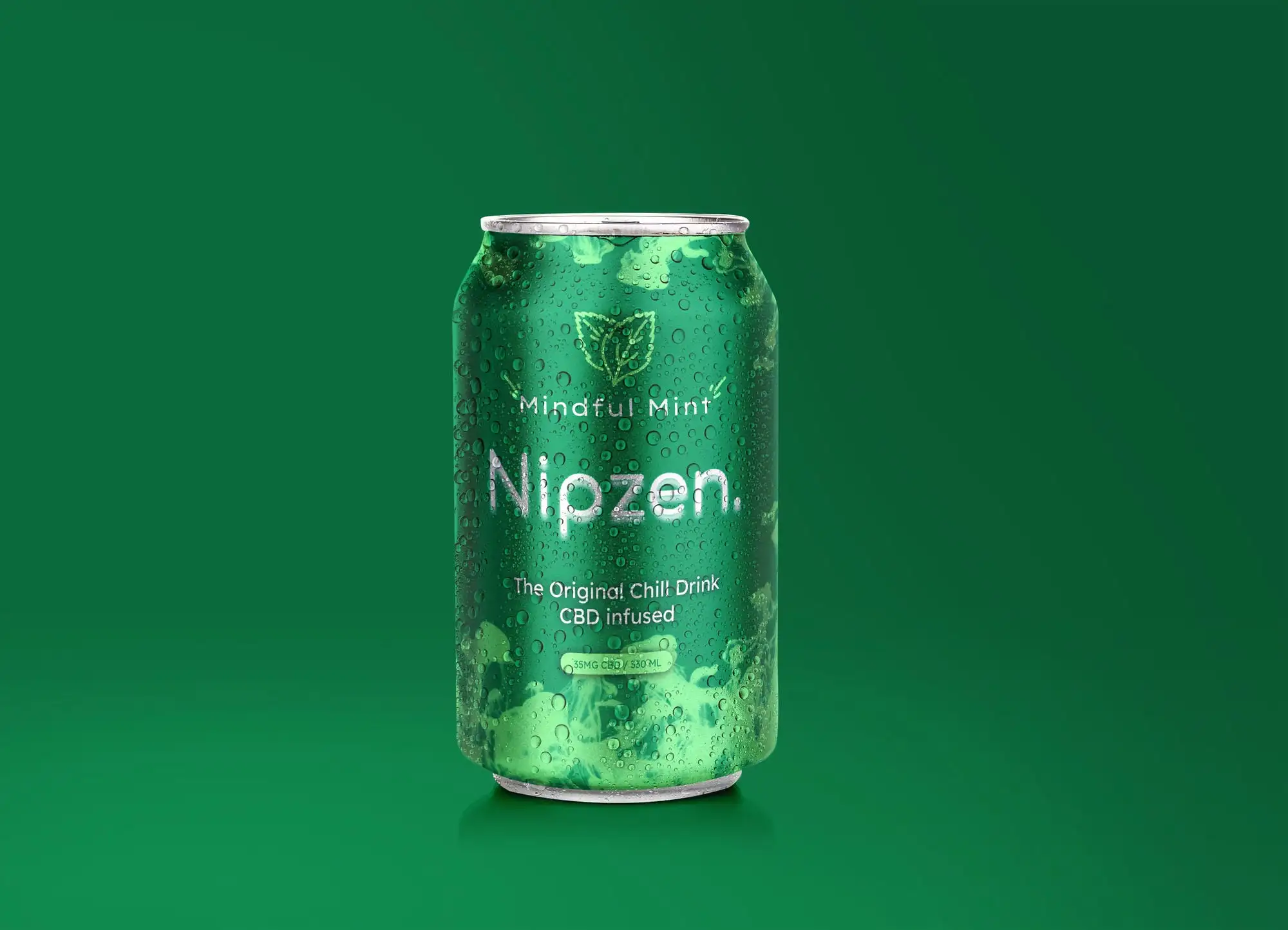
AI product renders change your logo because a text-to-image model generates every pixel of the output from scratch — it has no concept of "this region is a locked, non-negotiable file." When you prompt for a product with your logo on it, the model produces something that statistically resembles a logo in that spot: roughly the right shape, roughly the right colours, often close enough to fool a glance and never an exact match. It is not copying your artwork; it is guessing at it. The most common ways this shows up:
- Invented logos — the model has never seen your mark, so it fabricates a plausible-looking one that has nothing to do with your real brand.
- Distorted letterforms — text inside a logo blurs, doubles, drops or adds letters, or turns into decorative gibberish, because character-level accuracy isn't what diffusion models optimise for.
- Warped geometry — a clean geometric mark comes back lopsided, with wonky curves, uneven spacing or a symbol that's subtly the wrong proportion.
- Colour and finish drift — even when the shape survives, the exact brand hue shifts, or the model adds gradients, bevels and reflections you never designed in.
- Version roulette — regenerate the same prompt and you get a different wrong logo each time, because there's nothing anchoring the result to a fixed source.
This is the same failure that makes AI notoriously bad at spelling words on signs and packaging — and it's why a render can look impressively photoreal while the one element that must be exact, your logo, is the one element the model was never able to reproduce.
Why can't AI image generators just keep my logo the same?
Because most image generators are diffusion models: they create a picture by starting from noise and denoising it toward something that matches your prompt, learning along the way from pixel-level statistics rather than from a library of exact assets. There is no step where the model says "paste this specific PNG here, untouched." Everything in the frame — including your logo — is synthesised. A plain prompt gives the model no fixed reference to lock onto, so it approximates.
Newer features narrow the gap but rarely close it on their own. A reference or "brand kit" image nudges the model toward your style; image-to-image and "edit" modes keep more of an original photo; and models trained specifically for typography (Ideogram's text-focused versions are the usual example in 2026) hold letterforms far better than general models. But even the best of these still miss a meaningful share of runs on complex marks — one reason we treat AI as an accelerator for product visuals, not a press-print button, in our overview of the best AI design tools of 2026. The dependable answer is to stop asking the model to draw the logo at all.
Rule of thumb: never let a generative model create the pixels of your logo. Let AI build the scene — the lighting, the surface, the background, the mood — and add your real, vector-accurate logo as a separate, controlled step. The moment the mark is "drawn" rather than "placed," you've lost the one thing that has to be pixel-exact.
How do I stop AI from changing my logo in product renders?
Stop asking the generator to reproduce the logo, and instead keep the real artwork out of anything the model repaints. In rough order of reliability, from most bulletproof to most convenient:
- Composite the real logo in afterwards. Generate a clean, logo-free product or scene with AI, then place your actual vector or high-res logo on top in Photoshop, Figma, Canva or similar — matched to the surface's perspective, lighting and shadow. This is the only method that guarantees a pixel-exact mark, and it's how most professional "AI" product shots are actually made.
- Mask the logo with inpainting. If you must edit a photo that already has the correct logo, use inpainting/outpainting and mask the logo area so the model regenerates only the background or surface around it, never the mark itself.
- Generate a blank product, then apply the logo as a decal. Ask for the packaging, bottle or garment with a plain label area, then use a tool that warps a supplied logo image onto that surface following its curvature — you supply the real artwork, the tool only positions it.
- Use image-to-image with a strong reference and low change. Feed a real product photo and keep the transformation strength low so the model preserves the existing logo region as much as possible; inspect every output, because "as much as possible" is not "exactly."
- Pick a text-capable model for logotypes. If your logo is essentially clean type, a model tuned for text rendering will hold short wordmarks far better than a general one — still verify each result letter by letter.
- Prompt defensively as a last resort. When you have no other option, describe the logo precisely ("a small, flat, single-colour circular logo, centred, high contrast, no gradient"), generate several variations, and keep the closest — then expect to fix it by hand anyway.
The pattern across all six is the same: the more you separate "generate the scene" from "place the mark," the more your logo survives. For the wider discipline of stopping every brand element — colour, type, logo, tone — from drifting across a batch of AI images, see our guide to AI brand consistency.
Which AI tools keep a logo intact in product renders?
No mainstream generator reliably reproduces a real logo from a text prompt alone — the ones that keep your mark intact are those that let you supply the actual artwork and control where it goes. Here's how the common 2026 approaches compare (capabilities change fast, so confirm current features before committing):
| Approach | How it treats your logo | Logo fidelity | Best for |
|---|---|---|---|
| Plain text-to-image | Invents a logo from the prompt | Poor — never exact | Concepts and moodboards, not final assets |
| Image-to-image / edit mode | Preserves an existing logo partially | Fair — drifts on strong edits | Light background swaps on a real photo |
| Inpainting with a mask | Leaves the masked logo untouched, repaints around it | Good — if you mask correctly | Editing scenes that already have the right mark |
| Logo/decal placement tools | Warps your supplied artwork onto a surface | Very good — you provide the file | Mockups on packaging, bottles, apparel |
| AI scene + manual composite | Doesn't touch the logo at all — you add it | Exact — pixel-perfect | Final, on-brand product renders |
Notice the trade-off runs the same way every time: the more control the tool gives you over the actual logo file, the more accurate the result — and the fully manual composite, unsurprisingly, is the only one that's exact. That's not a limitation to fight; it's the workflow to design around. For turning these renders into a repeatable, on-brand product library, our AI product photography guide covers the end-to-end process.
When should you skip AI and composite the logo yourself?
Skip pure generation and composite whenever the logo has to be exactly right — which is almost every commercial use. Approximate is fine for internal moodboards, early concepts and throwaway social experiments; it is not fine for anything a customer will judge your brand by. Composite (or hire someone to) when the render is destined for:
- Packaging, labels and product mockups a manufacturer or customer will scrutinise up close.
- Paid ads and marketing campaigns, where an off logo quietly erodes trust and looks unprofessional.
- Marketplace and store listings (Amazon, Shopify, retail) with brand-accuracy requirements.
- Anything reused at scale, where one wrong mark gets copied across dozens of assets before anyone notices.
The deeper issue is that a logo the AI invents isn't your logo — it's brand inconsistency at the pixel level, and inconsistency is exactly what a brand identity exists to prevent. If your mark is drifting because you don't have clean, layered source files to composite from, that's the real gap to close first; a proper brand identity package for small businesses gives you the vector logo, colour codes and usage rules that make on-brand renders trivial instead of a fight.
If you'd rather hand the whole thing off, we produce pixel-exact product renders and brand visuals for teams across 30+ countries — combining AI-generated scenes with correctly composited, on-brand logos. You can see the work and start a conversation on our Upwork profile or through our graphic design service.
Frequently asked questions
Why does AI change or invent my logo in product images?
Because text-to-image models generate every pixel from scratch based on learned patterns — they don't treat your logo as a fixed file to reproduce. When you prompt for your logo, the model paints something logo-shaped rather than copying your actual artwork, so it comes back distorted, recoloured, or entirely invented. It's the same reason AI struggles to spell words correctly in images.
How do I keep my logo the same in an AI product render?
Don't let the model draw the logo. Generate a clean, logo-free scene with AI, then composite your real vector or high-resolution logo on top afterwards, matched to the surface's perspective and lighting. If you're editing a photo that already has the correct logo, mask that area with inpainting so the model only regenerates the background around it. Compositing is the only method that guarantees a pixel-exact mark.
Is there an AI tool that reproduces my logo exactly?
No mainstream text-to-image generator reliably reproduces a real logo from a prompt alone. The tools that keep it intact are ones you feed the actual artwork to — logo/decal placement tools that warp your supplied file onto a surface, inpainting that leaves a masked logo untouched, or a manual composite. As of 2026, text-tuned models hold clean wordmarks better than general ones, but you should still verify every output.
Can I use AI product renders with my logo for ads and packaging?
Yes, but composite the real logo in rather than letting AI generate it. For anything a customer judges — packaging, paid ads, marketplace listings — an approximate or invented logo looks unprofessional and erodes trust. Use AI for the scene, lighting and background, then add your exact, brand-accurate logo as a separate controlled step, or have a designer do it.
Want this done for you?
FRPROTECH is a Top Rated Plus Upwork agency with 3,000+ projects delivered across 30+ countries. Tell us your goals and we'll handle the rest.
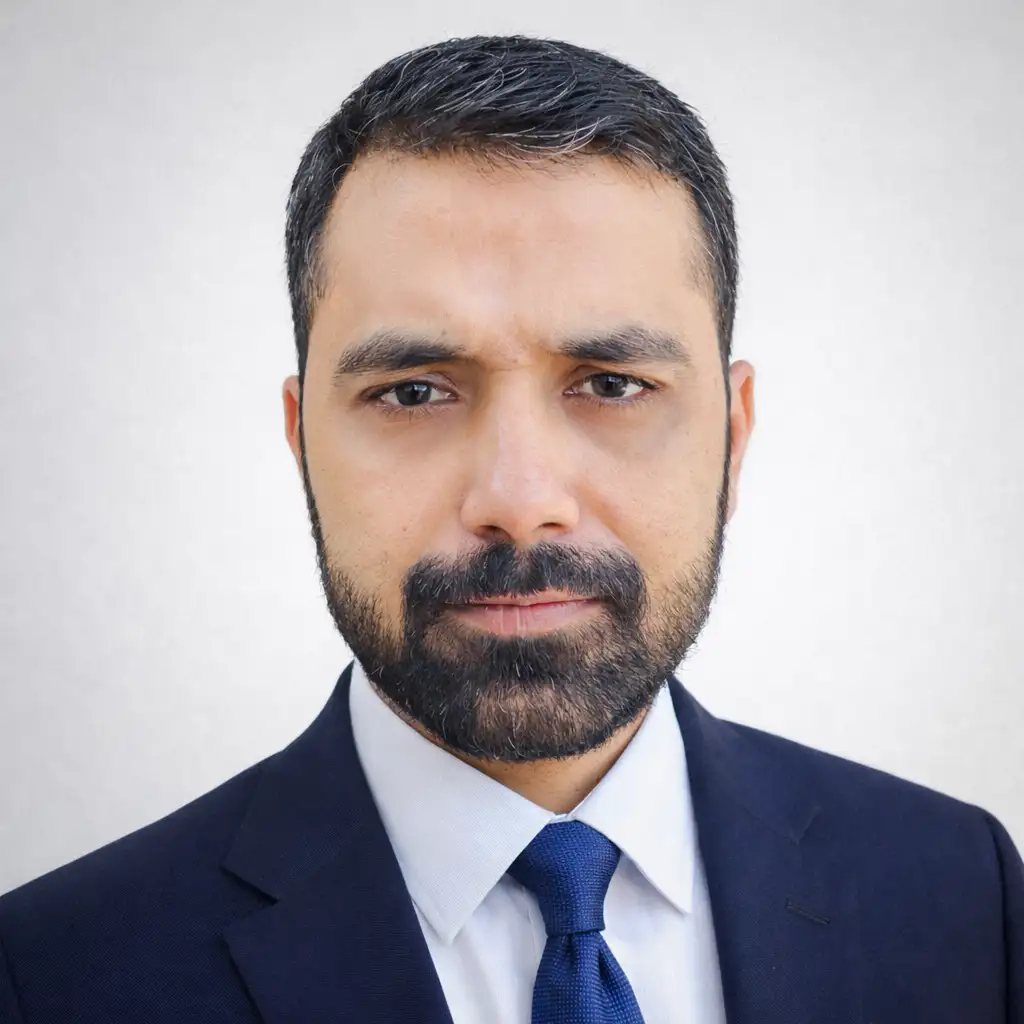
Written by Faisal Rizwan, CEO & Founder of FRPROTECH. 8+ years and 3,000+ projects building brands and websites for clients in 30+ countries, with a 100% Job Success Score as a Top Rated Plus freelancer on Upwork.